 EN
 IT Italiano
 ES Español
 FR Français
 DE Deutsch
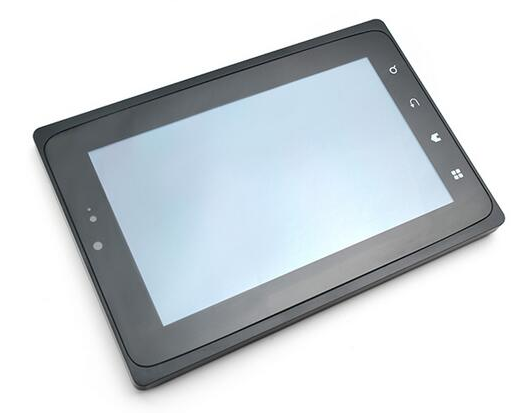
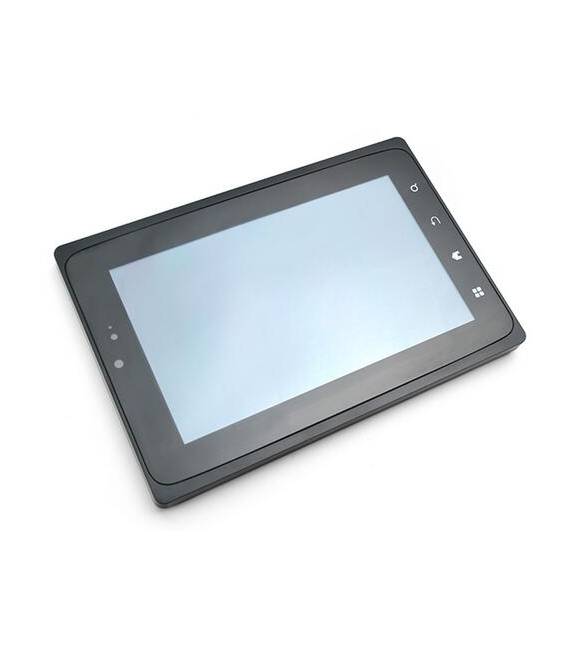
Description
What it is
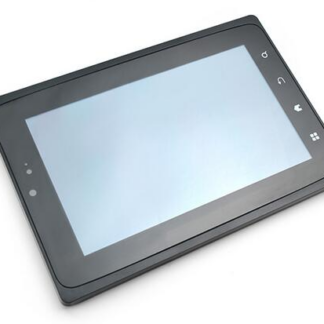
The Friendly X710 LCD is a color TFT display with a capacitive touchscreen, featuring a resolution of 1024×600 pixels. It is designed to be compatible with the NanoPi2 platform.
Features
- Dimensions: check the datasheet
- Resolution: 1024×600 pixels
- Touchscreen: capacitive
- Compatibility: NanoPi2
What it is for
The TFT display Friendly X710 is ideal for projects requiring an interactive high-resolution user interface. It can be used to create digital clocks with customized screens for hours, minutes, and seconds, or to build user interfaces for NanoPi2-based electronic devices.
Tutorial: How to use Friendly X710 LCD with Capacitive Touch
This LCD display offers high resolution and capacitive touch for user interface projects. Ideal for beginner and intermediate makers.
What you need
- Friendly X710 LCD with Capacitive Touch
- Arduino Nano
- FPC Cable (if not present on the display)
- Pull-up Resistor
Steps
- 1. Check if the display already has an FPC cable. If not, connect the FPC cable to the display.
- 2. Connect the display to the NanoPi2 via the FPC cable.
- 3. Connect the pull-up resistor to the VCC pin of the display and to GND.
- 4. Load the provided Arduino code onto the Nano.
- 5. Verify the display specifications in the datasheet.
- 6. Test the capacitive touch with a simple sketch.
- 7. Add a user interface based on screens.
- 8. Verify the stability of the display and touch.
Example code
```
#include <TFT_Touch.h>

TFT_Touch tft;

void setup() {
  tft.begin();
}

void loop() {
  if (tft.touched()) {
    Serial.println("Touch detected!");
  }
}
```
Mini project
Create a digital clock with different screens for hours, minutes, and seconds.
Common mistakes
- Connect the FPC cable correctly.
- Verify the pull-up resistor.
- Load the code correctly.
- Check the stability of the touch.
Recommended accessories
- Arduino Nano
- FPC Cable
- Pull-up Resistor
- NanoPi2 Display
Frequently asked questions
Is the display not recognizing touch?
Check the FPC cable connection and pull-up resistor. Review the Arduino code.
Is the display too bright?
Adjust the brightness in the Arduino code.
Is the touch response slow?
Check the stability and resistance of the touch.
Is the display not turning on?
Check the connection and power specifications.
Reviews
There are no reviews yet.