 EN
 IT Italiano
 ES Español
 FR Français
 DE Deutsch
Description
What it is
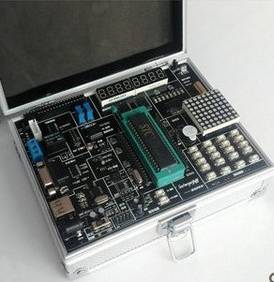
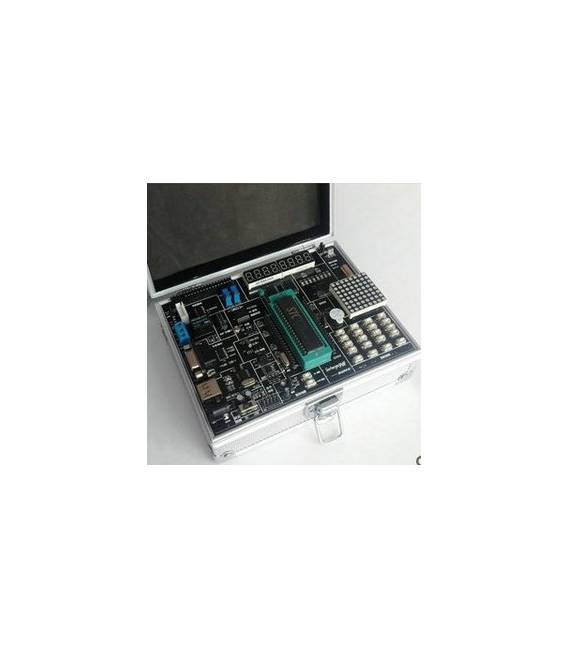
The Learning 51 MCU with Case Board is a tool designed to facilitate learning and project development with microcontrollers. The board includes a 51 MCU and a protective case, making it ideal for beginners and students of electronics and programming.
Features
- 51 MCU
- Protective case
- SKU: ARD0011073
- Price: 43.12 €
- Category: Pre-order
What it is for
The Learning 51 MCU with case board is perfect for educational projects and developing skills in microcontroller programming. It can be used to learn basic programming concepts and to create simple projects such as an LED timer.
Tutorial: How to Use Learning 51 MCU Board
This Learning 51 MCU board is ideal for beginners and intermediates in electronics and Arduino programming. It allows exploration of basic concepts and development of microcontroller programming skills.
What you need
- 51 MCU Learning Board
- Arduino IDE
- USB Cable
- 10kΩ Resistor (for pull-up)
- LED (5mm)
Steps
- 1. Install the Arduino IDE on a computer.
- 2. Download and install the Sanguino library.
- 3. Connect the 51 MCU board to the computer using the USB cable.
- 4. Check the datasheet for the correct pin configuration.
- 5. Create a new sketch in the Arduino IDE.
- 6. Write the example code provided in the Sanguino library.
- 7. Upload the code to the 51 MCU board.
- 8. Connect the LED to the output pin and the resistor, check the functionality.
Example code
```
#include <Sanguino.h>

void setup() {
  pinMode(13, OUTPUT);
}

void loop() {
  digitalWrite(13, HIGH);
  delay(1000);
  digitalWrite(13, LOW);
  delay(1000);
}
```
Mini project
Build a simple LED timer with the 51 MCU board. Connect the LED to pin 13, the timer will blink the LED every second.
Common mistakes
- Forget to install the Sanguino library.
- Connect the LED to the wrong pin.
- Fail to verify the pin configuration correctly.
- Upload the code without connecting the board.
Recommended accessories
- 5mm LED
- 10kΩ Resistor
- USB Cable
- 1kΩ Resistance (for pull-up)
Frequently asked questions
Which output pins are available on the board?
Check the datasheet to get the complete list of available output pins.
Can I use this board with recent versions of Arduino IDE?
Yes, but make sure you have the latest version of the Sanguino library.
What are the minimum requirements for the computer?
A computer with Windows, macOS, or Linux, and at least 2GB of RAM.
Can I use this board for commercial projects?
Yes, but make sure to follow the licenses and terms of use of the Sanguino library.
Reviews
There are no reviews yet.