 EN
 IT Italiano
 ES Español
 FR Français
 DE Deutsch
Description
What it is
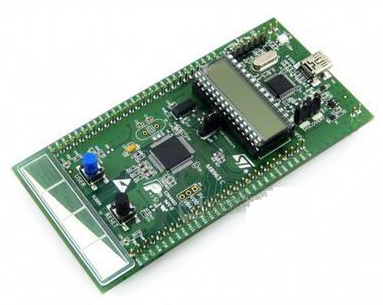
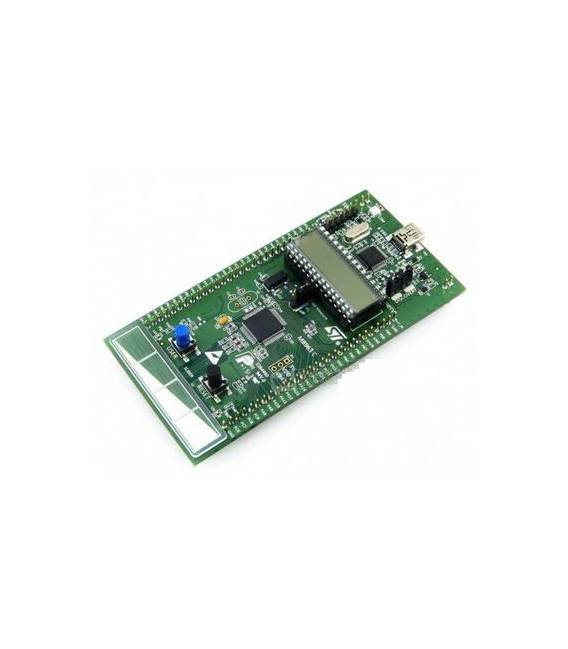
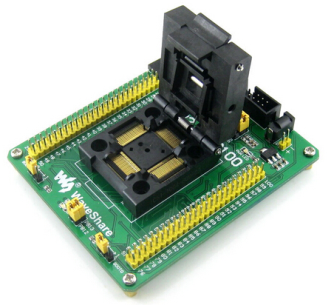
The STM32L152C-DISCO Discovery Evaluation Kit is a development board for testing and programming the STM32L152C microcontroller. It allows you to experiment with the microcontroller’s features and create embedded electronics projects.
Features
- Microcontroller: STM32L152C
- Price: 30.7 €
- SKU: ARD009659
- Category: Development Board, Main Board
What it is for
The kit is ideal for embedded programming and hardware development projects. You can use the kit to create simple projects such as an LED timer that turns an LED on and off every 2 seconds. Check the datasheet for specific information on compatibility with other software or platforms.
Tutorial: How to Use STM32L152C-DISCO Discovery Evaluation Kit
This kit allows you to explore the capabilities of the STM32L152C microcontroller, ideal for embedded programming and hardware development projects.
What you need
- STM32L152C-DISCO Discovery Evaluation Kit
- Computer with Windows or Linux operating system
- Arduino IDE software
- USB connector
Steps
- 1. Download and install the Arduino IDE.
- 2. Connect the kit to your computer via USB.
- 3. Open the Arduino IDE and select ‘File > Examples > STM32 > Blink’.
- 4. Check the datasheet for the correct serial port configuration.
- 5. Upload the code to the Arduino.
- 6. Test the functionality with the integrated LED.
- 7. Get familiar with the pins and main features of the microcontroller.
- 8. Try writing your first custom sketch.
Example code
```
void setup() {
  pinMode(5, OUTPUT);
}

void loop() {
  digitalWrite(5, HIGH);
  delay(1000);
  digitalWrite(5, LOW);
  delay(1000);
}
```
Mini project
Create a simple LED timer that turns an LED on and off every 2 seconds.
Common mistakes
- Forgetting to download the Arduino IDE.
- Connecting the kit to the computer with an unsupported USB cable.
- Not selecting the correct serial port configuration.
- Not verifying the code before uploading it to the Arduino.
Recommended accessories
- Digital sensors
- LCD Display
- Buttons and switches
- LED
Frequently asked questions
How can I verify the correct configuration of the serial port?
Check the datasheet or product page for the serial port identifier and select it in the Arduino IDE before uploading the code.
Which pins can I use to connect an LED?
Pins 5 and 6 can be used to connect an LED. Check the datasheet for further details.
Can I use this kit with a Mac computer?
Yes, but make sure you have a USB driver installed to support the connection.
Reviews
There are no reviews yet.