 EN
 IT Italiano
 ES Español
 FR Français
 DE Deutsch
Description
What it is
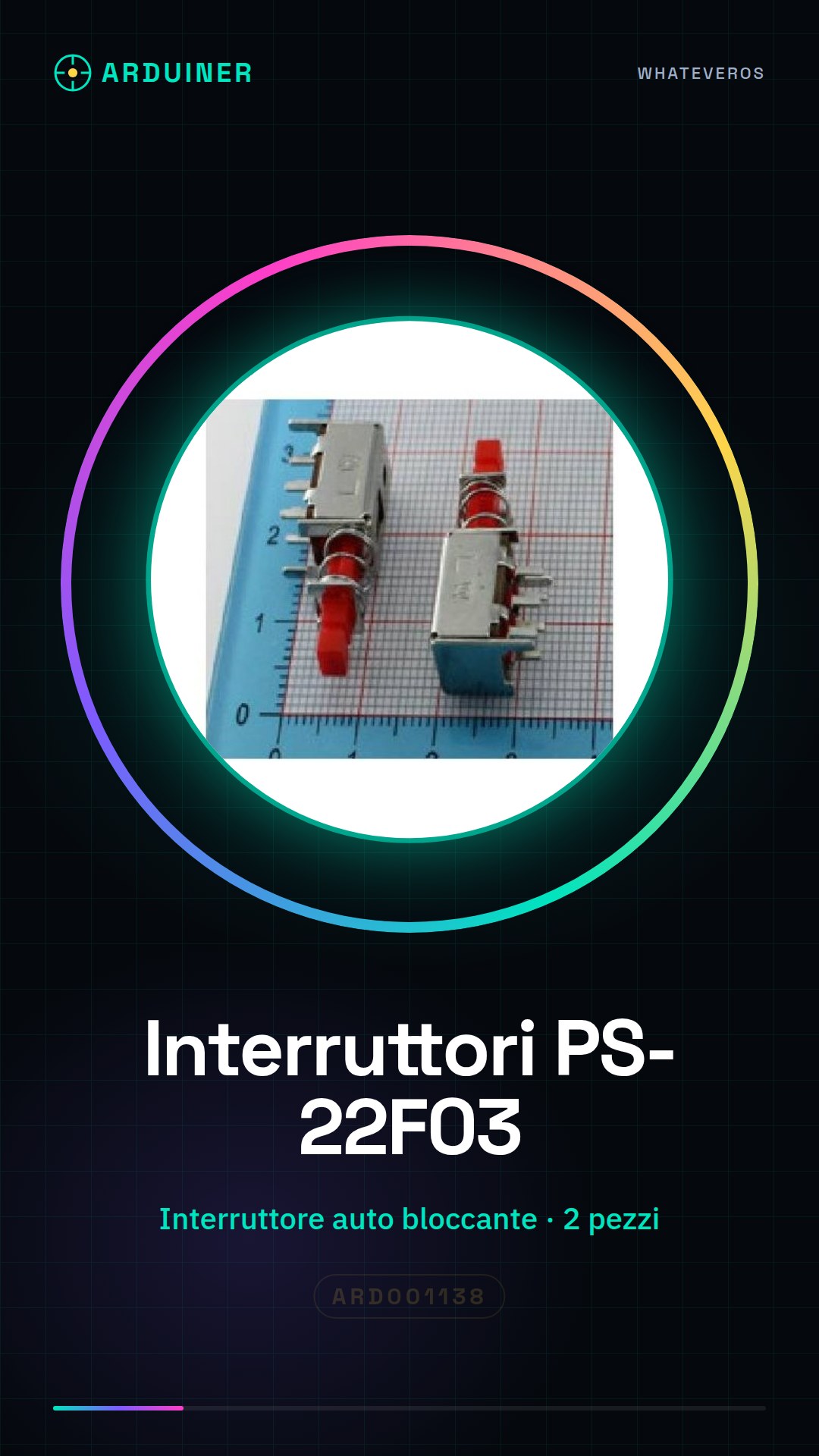
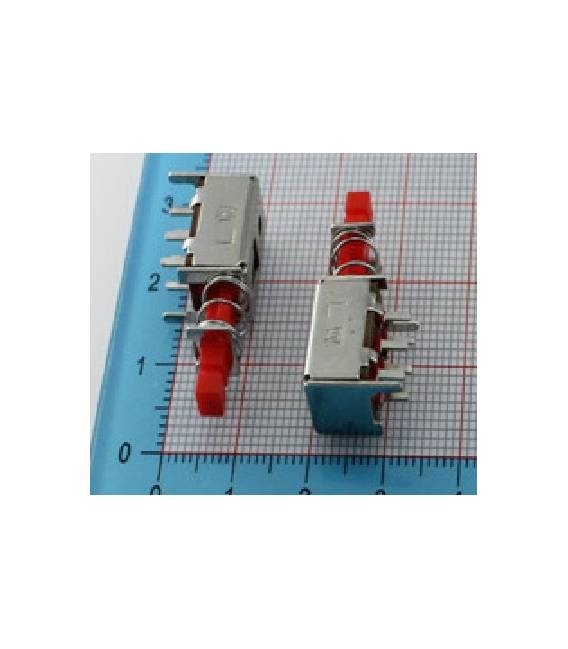
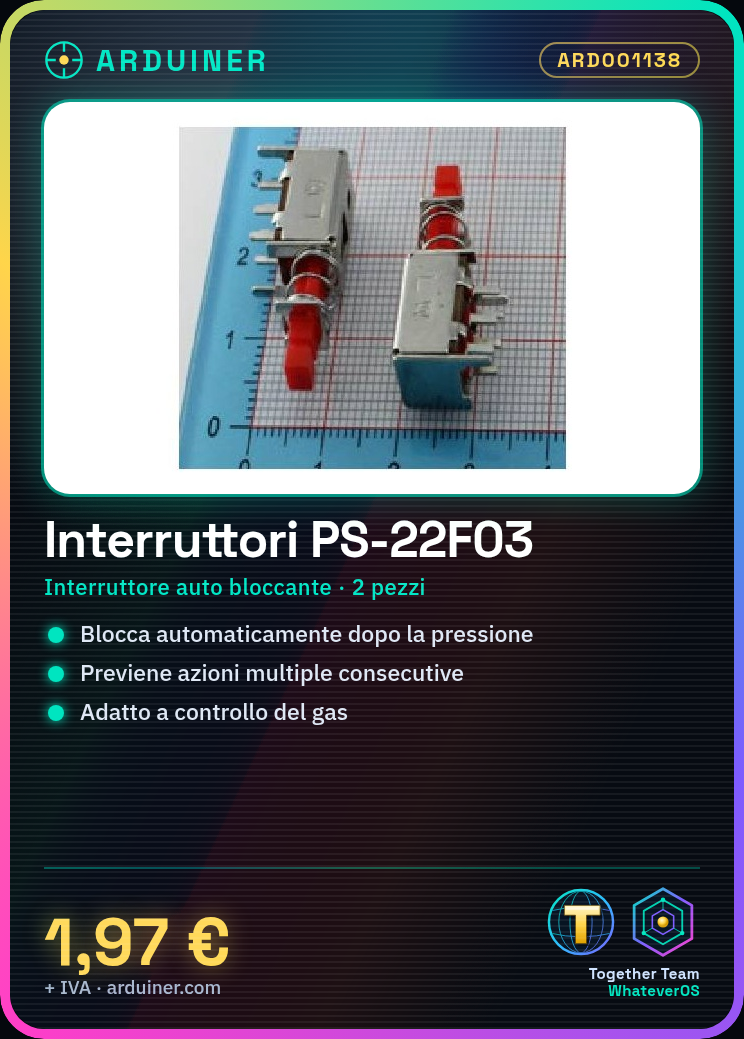
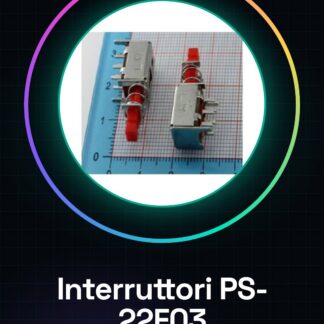
The PS-22F03 latching switches are components used to manage user interactions in electronic projects. These switches are particularly suitable for applications that require an automatic locking mechanism, such as gas control or other situations where it is necessary to prevent consecutive multiple actions.
Features
- Type: PS-22F03 Latching Switch
- Quantity: 2 pieces
What it is for
Install these switches in Arduino or DIY projects to control gas, create user input counters, and display data on a small LCD or through the Arduino serial console. They are compatible with various microcontrollers such as Arduino and ESP.
Tutorial: How to Use PS-22F03 Switch
The PS-22F03 switches are essential components for managing user interactions in electronic projects. They are ideal for beginners and makers who want to add input functionality to their devices.
What you need
- Arduino Uno or compatible
- jumper wire
- PS-22F03 switch
Steps
- Check the presence of the component and its state (latching or non-latching) by comparing it with the specifications on the datasheet.
- Connect one end of a jumper wire to the digital pin on the Arduino that you wish to use for the switch.
- Connect the other end of the jumper wire to the center (common) terminal of the PS-22F03 switch.
- Connect one end of another jumper wire from the GND pin on the Arduino to the common terminal of the PS-22F03 switch.
- Verify the electrical connection with a tool such as a multimeter.
- Open Arduino IDE, create a new sketch and import the necessary libraries (if present).
- Write or paste the provided sketch into the Arduino IDE.
- Compile and run the code on your Arduino.
Example code
void setup() {
  pinMode(2, INPUT_PULLUP);
}

void loop() {
  if(digitalRead(2) == LOW){
    Serial.println("Interruttore premuto");
  }
}
Mini project
Create a counter that increments every time the PS-22F03 switch is pressed. Display the count on a small LCD or through the Arduino serial console.
Common mistakes
- Incorrect connection between Arduino and switch
- Incorrect digital pin in the code
- Forgetting to add a pull-up/pull-down resistor
Recommended accessories
- Arduino Uno
- 16×2 LCD
- Pull-up resistor
Frequently asked questions
Does the switch latch when I press it?
Check the datasheet to see if the switch is latching or non-latching.
Which pins should I use on the Arduino?
You can choose any digital pin, but make sure to rename it in the Arduino code.
Why doesn’t my LCD display anything when I press the switch?
Check the connection between the LCD and the Arduino, make sure it is correct and that the code includes communication with the LCD.
Reviews
There are no reviews yet.