 EN
 IT Italiano
 ES Español
 FR Français
 DE Deutsch
Description
What it is
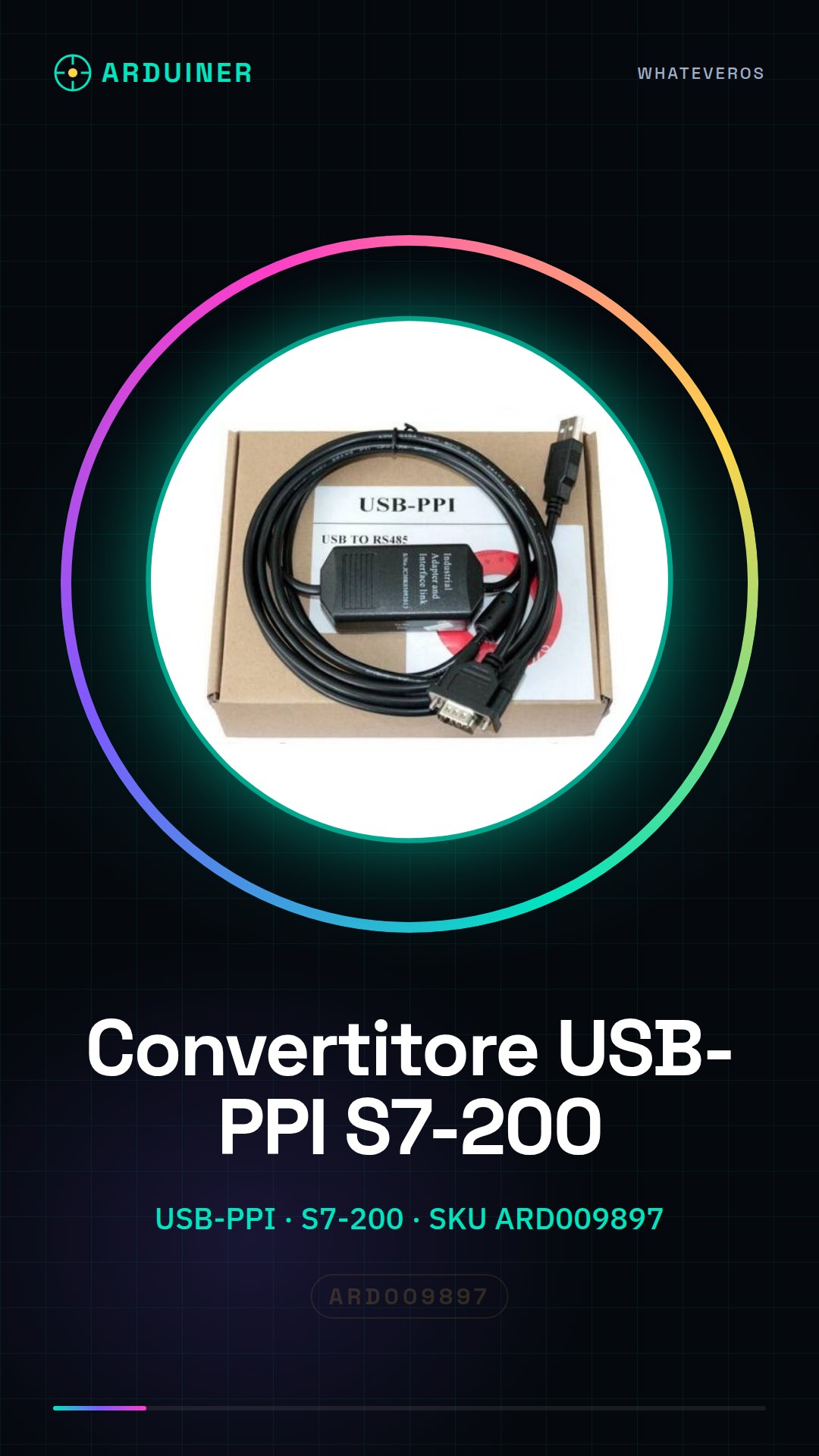
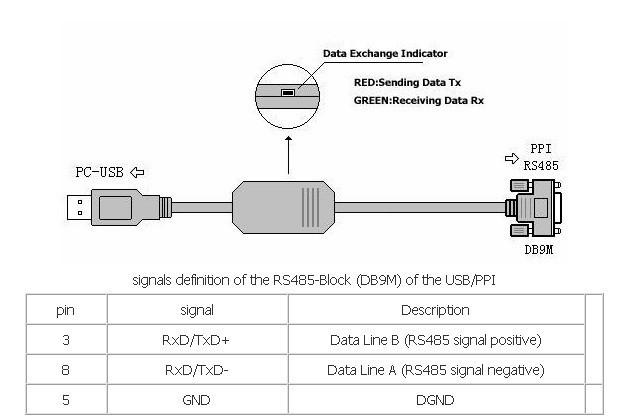
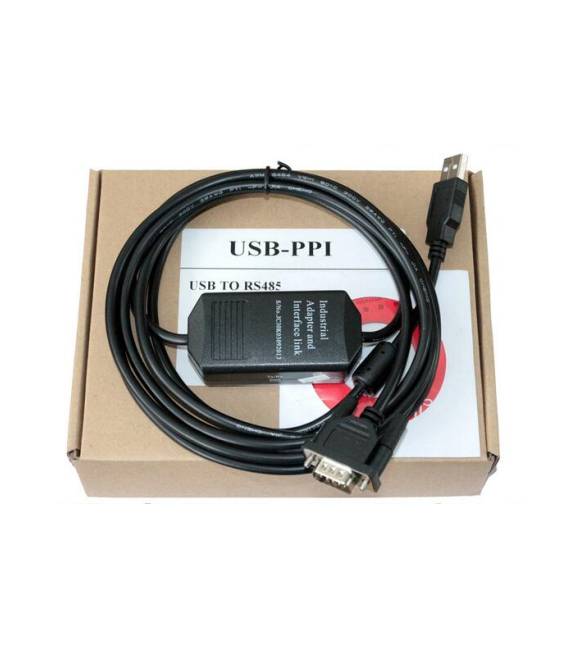
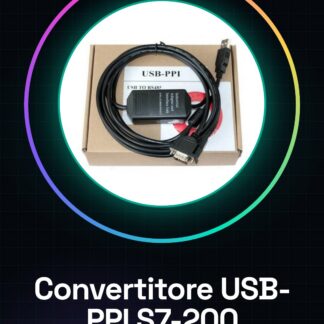
The USB-PPI Communication Line ARD009897 is a converter that allows connecting a computer via USB to a Siemens S7-200 PLC via the PPI protocol.
Features
- USB-PPI Connection
- Compatibility with Siemens S7-200 PLC
- SKU: ARD009897
- Price: 14.09 €
What it is for
This converter is useful for programming and monitoring Siemens S7-200 PLCs directly from the computer. It can be used by programmers and electronics enthusiasts for various applications, such as controlling limit switches or turning on LEDs via an S7-200 PLC.
Tutorial: How to Use the USB-PPI Converter
This USB-PPI converter allows you to program and monitor Siemens S7-200 PLCs directly from your computer. Useful for programmers and electronics hobbyists.
What you need
- USB-PPI Communication Line
- PC with Windows or Linux
- AppliCavo Software
- S7-200 PLC
Steps
- 1. Connect the USB-PPI converter to your PC.
- 2. Turn on the S7-200 PLC.
- 3. Start the AppliCavo software.
- 4. Select ‘Configure’ and set the converter as ‘PPI’.
- 5. Connect the PPI cable to the PLC.
- 6. Configure the PLC parameters in the software.
- 7. Download the program to the PLC.
- 8. Monitor the PLC in real-time.
Mini project
Program a simple S7-200 PLC to control a limit switch with an LED.
Common mistakes
- Forget to connect the PPI cable to the PLC.
- Set the PLC parameters correctly.
- Do not start the AppliCavo software.
- Connect the USB-PPI converter incorrectly.
Recommended accessories
- PPI cable
- AppliCavo software
- S7-200 PLC
- Limit switch
Frequently asked questions
My PLC does not connect to the converter.
Check the correct connection of the PPI cable and configuration parameters.
How can I check the version of my PLC?
Access the PLC configuration menu and check the version.
The AppliCavo software does not recognize the PLC.
Ensure that the USB-PPI converter is correctly configured as ‘PPI’.
How can I update the PLC firmware?
Use the AppliCavo software to download the firmware onto the PLC.
Reviews
There are no reviews yet.