 EN
 IT Italiano
 ES Español
 FR Français
 DE Deutsch
Description
What it is
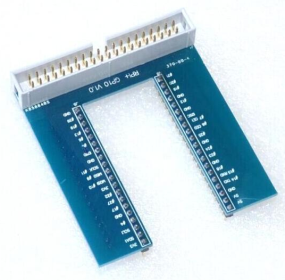
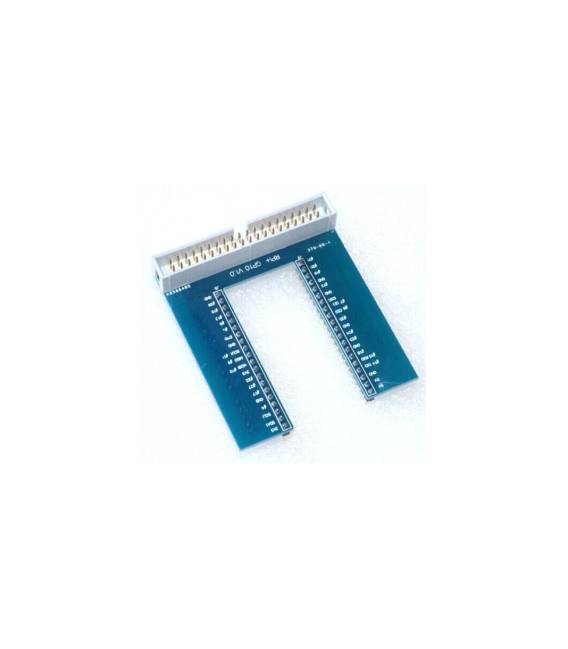
The Raspberry PI 3 U Type Blue GPIO is a universal interface module designed for makers and developers who want to extend the functionality of the Raspberry Pi through its GPIO (General Purpose Input Output) interface.
Features
- U-Type interface compatible with Raspberry PI 3
- Blue cover to protect the GPIO pins
What it is for
Typical projects include creating simple circuits such as a button that turns on and off an LED. This module is ideal for both beginners and intermediate developers.
Tutorial: How to use Raspberry PI 3 U Type Blue GPIO
The Raspberry PI 3 U Type Blue GPIO is a universal interface module for electronic projects. Ideal for beginner and intermediate makers who want to extend the functionality of the Raspberry PI.
What you need
- Raspberry PI 3 U Type Blue GPIO
- Arduino IDE
- MicroUSB cable
- GPIO cables
Steps
- 1. Install the OS on the Raspberry PI. Use NOOBS or the SD card image provided.
- 2. Connect the Raspberry PI to a monitor or TV via HDMI.
- 3. Connect the Raspberry PI to a 5V power supply.
- 4. Connect the Raspberry PI to a WiFi router or connect to the internet via Ethernet cable.
- 5. Install a Linux-based operating system.
- 6. Install the Arduino IDE on the computer.
- 7. Connect the Raspberry PI to the computer via USB.
- 8. Download a GPIO code example and upload it to the Raspberry PI.
Example code
void setup() { pinMode(13, OUTPUT);}void loop() { digitalWrite(13, HIGH); delay(1000); digitalWrite(13, LOW); delay(1000);}Mini project
Create a simple switch that turns on and off an LED.
Common mistakes
- Do not connect the Raspberry PI directly to a 5V power source without a voltage converter.
- Do not use a standard USB cable, but a microUSB cable.
- Check the datasheet for the GPIO specifications.
- Do not connect high voltage electronics directly to the GPIO pins.
Recommended accessories
- LED
- Resistor
- Button
- Connection cables
Frequently asked questions
How can I connect a button to the Raspberry PI?
Connect the button to a GPIO pin and to GND through a pull-down resistor.
Which operating systems work with the Raspberry PI?
Raspbian, Ubuntu MATE, and other Linux-based systems.
Does the Raspberry PI 3 U Type Blue GPIO work with Arduino?
Yes, but it is a GPIO module, not an Arduino.
Can I use the Raspberry PI as a web server?
Yes, install a web server like Apache or Nginx.
Reviews
There are no reviews yet.