 EN
 IT Italiano
 ES Español
 FR Français
 DE Deutsch
Description
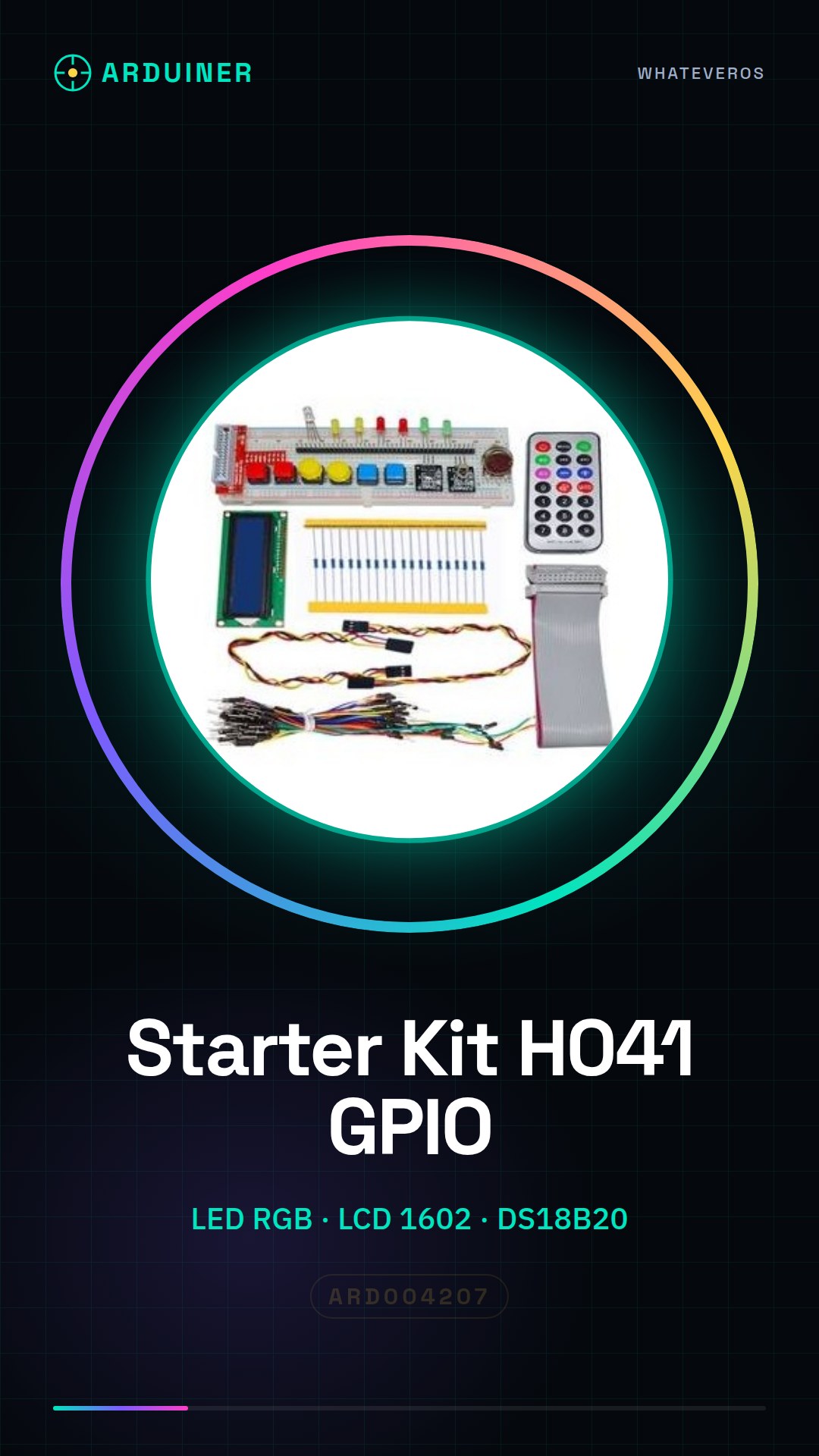
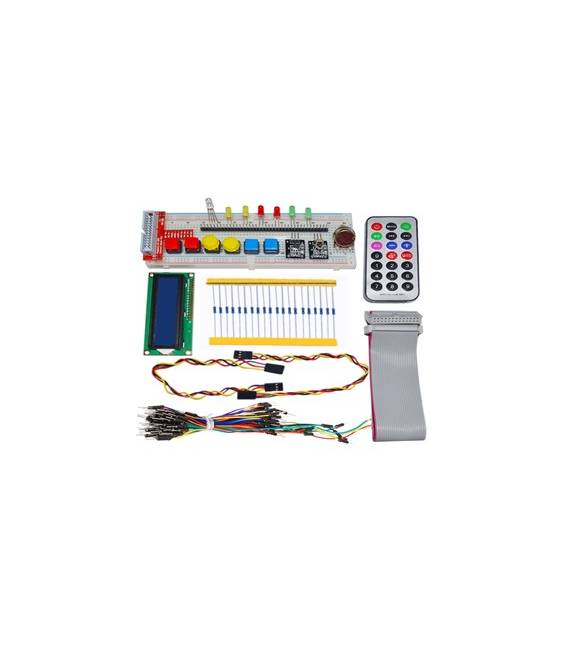
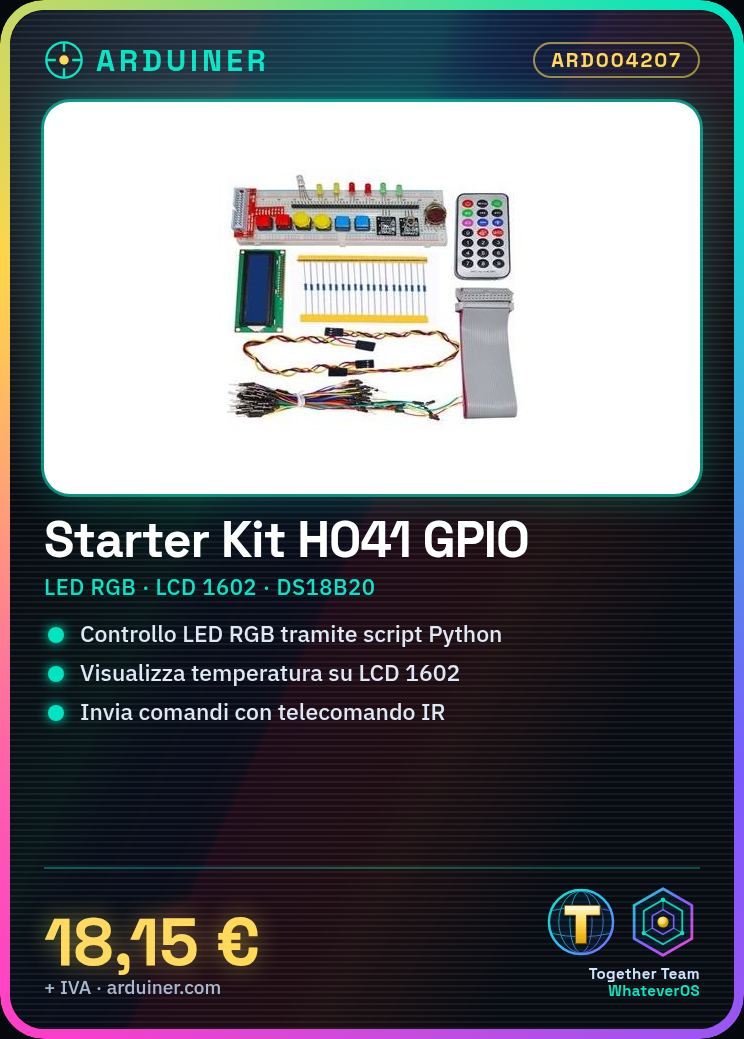
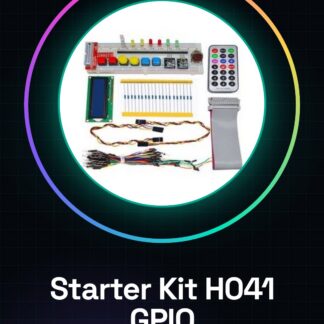
H041 GPIO Starter Kit for RGB LED LCD Raspberry Pi 1602 DS18B20 IR Remote
| Kit List | Qty |
| 220R Resistor | 20 |
| Remote Control | 1 |
| 40 Pin Header + GPIO Extension Board | 1 |
| 26 Pin Ribbon Cable GPIO | 1 |
| 1602 LCD Display Module | 1 |
| DS18B20 Temperature Sensor Module | 1 |
| 2 Pin Female to Female Dupont Cable 20cm | 1 |
| IR Receiver Sensor | 1 |
| 5mm LED + Button (Green / Red / Yellow, 2 pieces / each) |
6 |
| 830 TieBreadboard + Jumper Cable (65 pieces / set) | 1 |
| Rotary Potentiometer | 1 |
| 3 Color Plug Element | 6 |
Tutorial: How to Use H041 GPIO Starter Kit for Raspberry Pi
The H041 kit is designed to help you get started with Raspberry Pi GPIO, allowing you to control RGB LEDs, 16×2 LCD, and a DS18B20 sensor. Ideal for beginners who want to explore programming on Raspberry Pi.
What you need
- Raspberry Pi
- microSD with Raspbian installed
- USB power supply
- HDMI cable or LCD monitor
Steps
- Step 1: Connect the Raspberry Pi to the USB power supply and to the monitor. Check that it is powered on.
- Step 2: Connect the LCD 1602 to the Raspberry Pi GPIO pins following the pin map in the kit.
- Step 3: Connect the DS18B20 sensor to the Raspberry Pi GPIO pins, ensuring to respect the logic levels (check the datasheet).
- Step 4: Connect the RGB LED to the Raspberry Pi and control it with a simple Python script.
- Step 5: Install the necessary driver for the DS18B20 sensor following the official Raspbian documentation (check the datasheet).
- Step 6: Test the connected components by writing a simple Python script to control them.
- Step 7: Use the IR remote to send commands to devices connected to the Raspberry Pi.
- Step 8: Try to create an application that integrates all the components in the kit.
Example code
# Esempio di script Python
import RPi.GPIO as GPIO
# Inserire qui il codice per controllare LED RGB, LCD e sensore DS18B20
Mini project
Create a small application that displays the temperature on the LCD 16×2 display when an IR remote control button is pressed.
Common mistakes
- Do not respect the logical levels of the GPIO pins
- Use the wrong driver for the DS18B20 sensor
- Connect the sensor or the LCD without first installing the necessary libraries
- Insert a syntax error in the Python code
Recommended accessories
- Raspberry Pi Starter Kit
- 3D Print to build your protective case
- IR remote control cable
- Beginner’s guidebook on Raspberry Pi
Frequently asked questions
How can I control the DS18B20 sensor?
Install w1-gpio and w1-therm, then consult the Raspbian documentation.
What is the purpose of the IR remote control?
To send commands to devices connected to the Raspberry Pi without using the mouse or keyboard.
Can I use this kit with Arduino?
No, the kit is specific to Raspberry Pi. Use another starter kit for Arduino instead.
Reviews
There are no reviews yet.