 EN
 IT Italiano
 ES Español
 FR Français
 DE Deutsch
Description
What it is
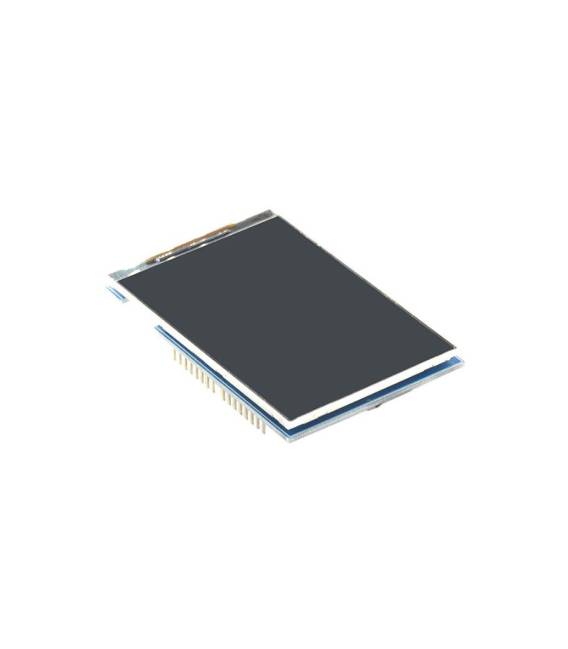
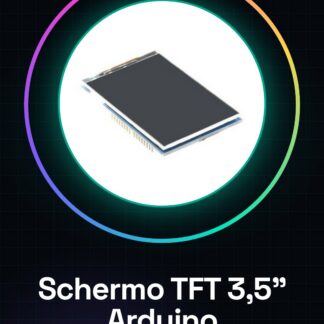
The 3.5 inch color TFT screen module for Arduino UNO R3 / Mega is an electronic component that allows displaying color images and text on a 3.5 inch TFT display.
Features
- Display size: 3.5 inches
- Display type: Color TFT
- Compatibility: Arduino UNO R3, Arduino Mega
What it is for
This module is ideal for visual projects that require interactivity, such as creating graphical menus, displaying real-time information, or the interface of an electronic device. It can be used by both beginners and more experienced makers to create interactive electronic projects.
Tutorial: How to use 3.5 inch color TFT screen module
The 3.5 inch color TFT screen module is a useful component for visual projects that require high interactivity. Ideal for both beginners and more experienced makers, this display can be used with Arduino UNO R3 or Mega.
What you need
- Arduino Uno R3 / Mega
- USB cable to connect the Arduino to the PC
- 5V power supply battery (optional)
- Colored jumpers
Steps
- Connect the TFT module to your Arduino UNO R3 or Mega using the jumpers. Check the datasheet for correct pin identification.
- Install the Adafruit_GFX and Adafruit_TFTLCD libraries from the Arduino IDE library manager.
- Load the example sketch provided by the library to test the display.
- Modify the sketch according to your needs, such as adding images or changing the display resolution.
- If necessary, connect a 5V power supply battery to allow autonomous use of the module.
- Try to create a simple graphical menu using the drawing and text printing features of the display.
Example code
// Includi la libreria
#include <Adafruit_GFX.h>
#include <Adafruit_TFTLCD.h>

// Definisci il modulo LCD
#define TFT_CS 10
#define TFT_RST 9
#define TFT_DC 8
Adafruit_TFTLCD tft(TFT_CS, TFT_DC, TFT_RST);

tft.begin(); // Inizializza il display
Mini project
Create a small graphical menu with this module. Display options such as ‘Configuration’, ‘Information’, and ‘Exit’. Use PNG images to make the interface more attractive.
Common mistakes
- Do not properly check the pin connections.
- Omit installing the necessary library.
- Insert an inadequate power supply that damages the module.
- Use a resolution too high for the display, causing slowdowns.
Recommended accessories
- 5V power supply battery
- Colored jumpers
- Prototype board
- Vector drawing software (e.g., Inkscape)
Frequently asked questions
How can I connect the module to an external power supply?
Connect the VCC and GND pins of the module to your 5V power supply.
Which libraries are needed to use this display?
Install Adafruit_GFX and Adafruit_TFTLCD from the Arduino IDE library manager.
Reviews
There are no reviews yet.