 EN
 IT Italiano
 ES Español
 FR Français
 DE Deutsch
Description
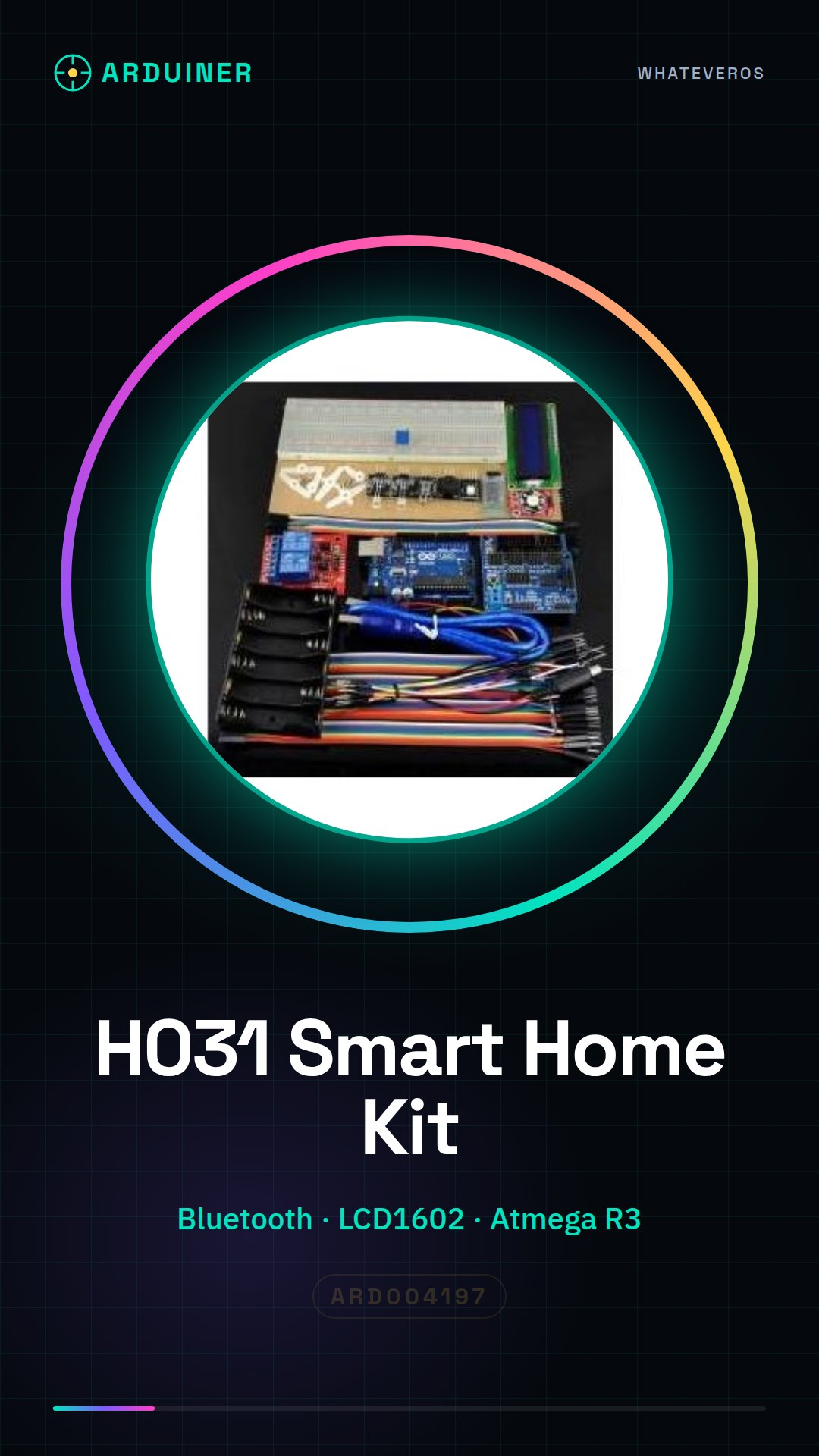
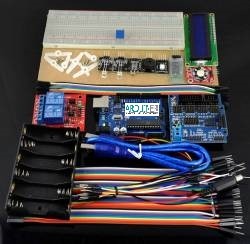
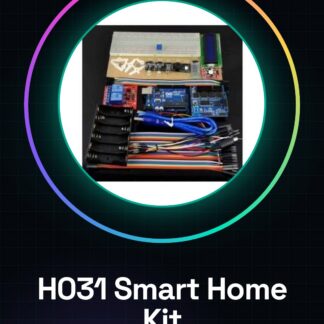
H031 Learning Kit for Android Smart Home
< tr> V5.0 sensor extension board 1 < tr>
Bluetooth module
1 < tr> LCD1602 module 1 (soldering needle line) 1 < tr> Automatic 7-color LED module 2 < tr> 3W LED module 1 < tr>
Photoresistor module
2 < tr>
103 adjustable resistor
1 < tr>
Large senior breadboard
1 < tr>
9g servo
2 < tr> Organic glass plate 10 * 20 cm 1 < tr> Section 6 5 battery box 1
| Kit List | Qty |
| Atmega R3 development board | 1 |
| Buzzer module | 1 |
| Dubon male to female wires | 40 |
| Dubon female to female wires | 10 |
| Breadboard connection line | 20 |
| USB cable | 1 |
| 2 channel relay | 1 |
| 3 color RGB module | 1 |
| Data development board | 1 |
Tutorial: How to use Android Smart Home Learning Kit
The H031 Android Smart Home Learning Kit is an ideal package to start exploring the world of smart homes with Android devices. This kit allows you to create and test simple applications that interact with sensors and actuators.
What you need
- Android smartphone or tablet
- Compatible Arduino kit
- Internet connection
- Android development software (e.g., Android Studio)
- Required communication libraries
Steps
- Install and configure the Android development software on your computer.
- Download the required libraries from the official website or GitHub.
- Configure the Arduino kit with the smart home kit components.
- Connect the Android device to the PC via USB for wireless debugging (if supported).
- Create a new Android project in your development environment.
- Add the necessary libraries to the project and configure them.
- Write the code that allows the app to communicate with the Arduino via Bluetooth or Wi-Fi (check the datasheet).
- Test the functionality of the created application
Example code
// Esempio di codice per inviare dati da Android a Arduino
// Verifica sul datasheet per le specifiche del protocollo di comunicazione
Mini project
Create a simple app that controls an LED connected to the Arduino via the smart home kit. Insert a button in the app and link it to the function that changes the state of the LED.
Common mistakes
- Unable to establish a connection between Android and Arduino.
- Problems in configuring the necessary libraries for the project.
- Difficulty in finding the specifications of the communication protocol.
- Syntax error in the code that prevents the execution of the application
Recommended accessories
- Arduino Starter Kit
- Android Development Libraries
- Compatible Sensors and Actuators
- Wi-Fi or Bluetooth Projector to Test Connections
Frequently asked questions
Which Libraries Are Needed?
Check the datasheet of the smart home kit.
How can I establish a connection between Android and Arduino?
Ensure that the communication protocol is correctly configured in your code and that the two devices are connected to the same Wi-Fi or Bluetooth network.
Reviews
There are no reviews yet.