 EN
 IT Italiano
 ES Español
 FR Français
 DE Deutsch
Description
What it is
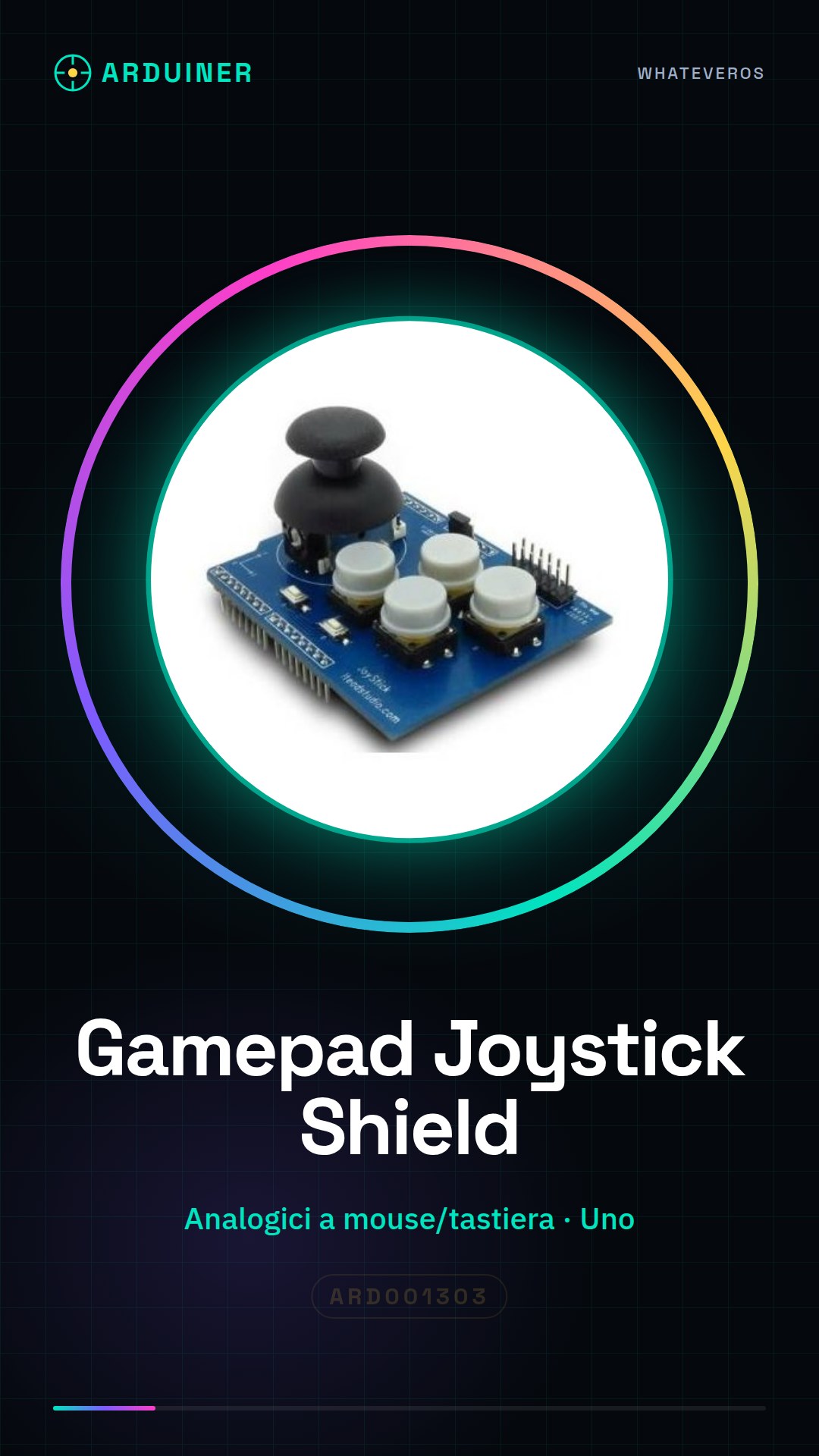
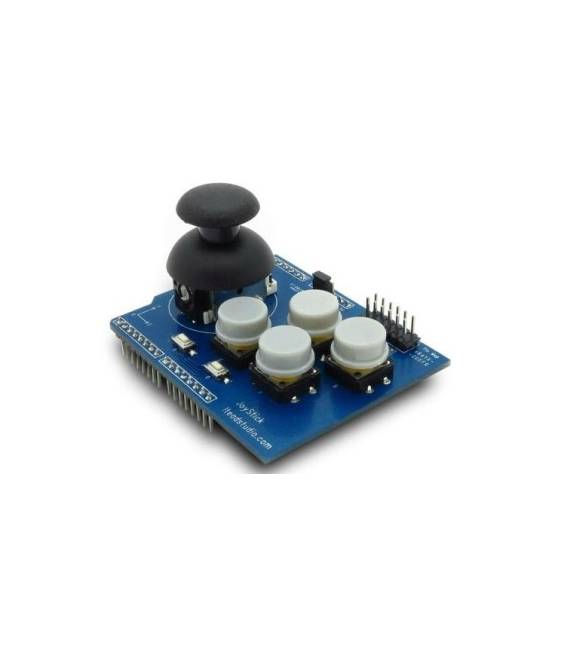
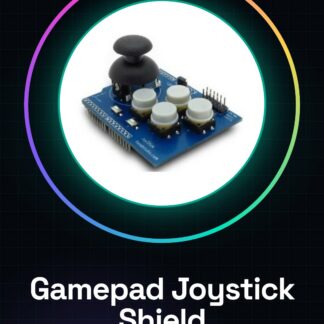
The Arduino Analog Keyboard and Mouse Gamepad Joystick Shield is a board that allows transforming Arduino into a complete game controller. It converts analog signals from joysticks or sensors into mouse and keyboard commands.
Features
- Converts analog signals into mouse and keyboard commands
- Ideally suited for developing interactive projects with Arduino
What it is for
It is used to create custom input devices, ideal for projects such as small platform games or any other application that requires the use of a joystick. It allows beginners and intermediate makers to interact with Arduino in a more intuitive and fun way.
Tutorial: How to use Arduino Analog Keyboard and Mouse Gamepad Joystick Shield
This shield is ideal for developing interactive game projects with Arduino. It converts analog signals into mouse or keyboard commands, allowing beginners and intermediate makers to create custom input devices.
What you need
- Arduino Uno or compatible
- USB cable to connect the Arduino to the computer
- Driver for the respective operating system (if necessary)
- Arduino IDE software installed
Steps
- Connect the shield to the Arduino using the printed slots.
- Check the proper power supply for the Arduino and the shield.
- Install the necessary drivers for your computer if they are not already present.
- Download the example code from the Arduino website or the product documentation.
- Upload the sketch to your Arduino using the IDE.
- Open Serial Monitor in the Arduino IDE to view the data sent by the shield.
- Configure the game software or application that receives the mouse/keyboard inputs.
- Test the full functionality of the device, ensuring that all commands are detected correctly.
Example code
// Esempio base per leggere i valori dal gamepad e inviarli come dati seriali
void setup() {
  Serial.begin(9600);
}

void loop() {
  int x = analogRead(A0); // Leggi il valore dell'asse X del joystick
  int y = analogRead(A1); // Leggi il valore dell'asse Y del joystick
  Serial.print(x);
  Serial.print(",");
  Serial.println(y);
}
Mini project
Create a small platform game using this gamepad as the main controller. Use the X axis to move the character horizontally and the Y axis to jump or interact with objects in the virtual world.
Common mistakes
- The necessary drivers have not been installed correctly.
- The game software is not configured to receive input from external keyboard/mouse.
- The connections between Arduino and shield are inadequate or damaged.
- The example code has not been adequately modified to fit your specific project.
Recommended accessories
- USB drivers for Arduino
- Prototype kit for printed circuit boards
- Open-source game development software
- Additional analog sensors
Frequently asked questions
How can I configure the gamepad for a specific game?
Check the game or application documentation for custom settings. Often, it is possible to map gamepad commands to game controls.
My gamepad does not work with the Arduino, what can I do?
Check the physical connection between Arduino and shield, verify that the driver is correctly installed and try to upload a basic example code to test the gamepad functions.
Reviews
There are no reviews yet.