 EN
 IT Italiano
 ES Español
 FR Français
 DE Deutsch
Description
Technical Description
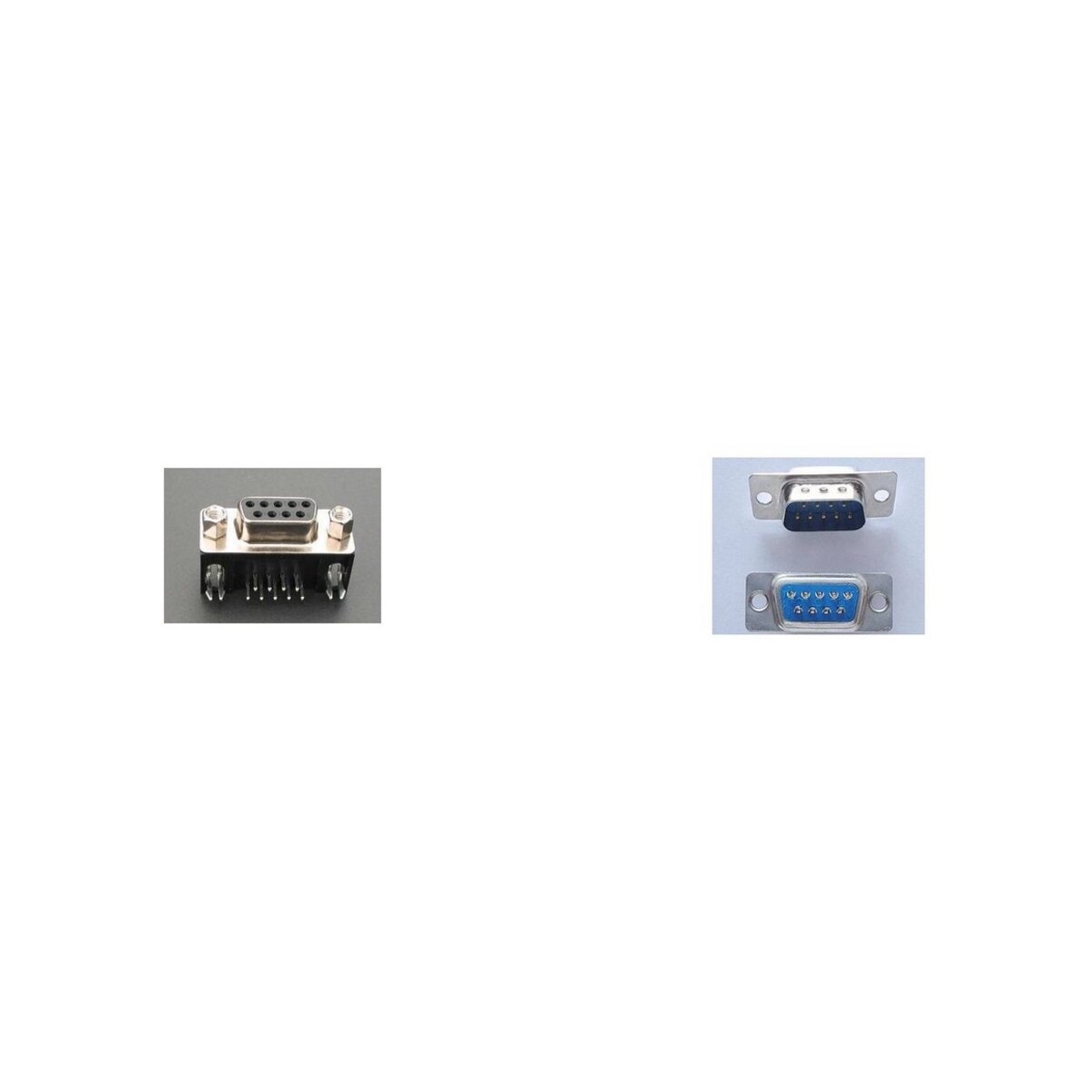
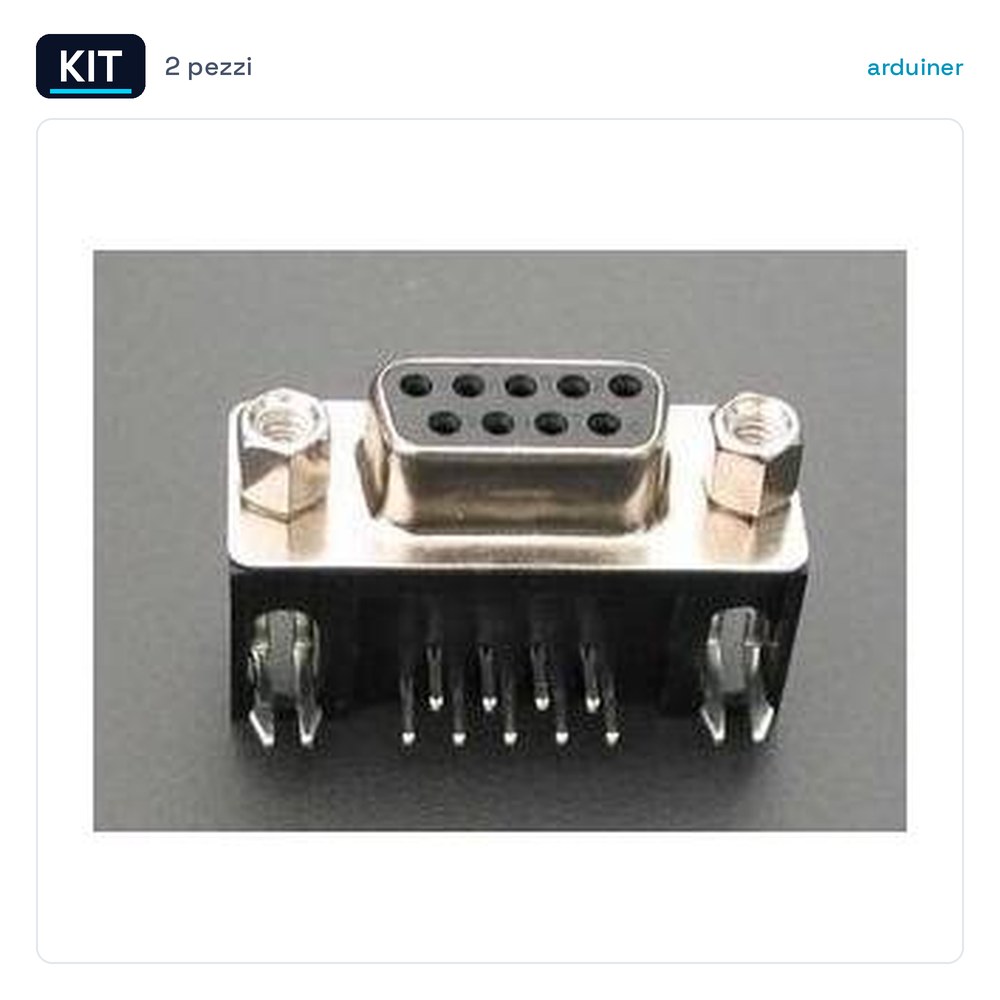
The DR9 Female RS232 Serial 9 Pin Connector Kit + DB9 Male RS232 Serial 9 Pin Connector is a set of components useful for the creation of RS232 serial connectors. This kit consists of three DR9 female connectors and four DB9 male connectors, both with 9 pins and compatible with the RS232 interface. These connectors are useful for connecting devices such as printers, modems, and other devices that require an RS232 serial connection.
The DR9 female and DB9 male connectors are designed to be easily mountable on panels or electronic supports. Their compatibility with the RS232 interface makes them suitable for the creation of serial connections between electronic devices.
These connectors are useful for creating RS232 serial connectors between electronic devices. Their compatibility with the RS232 interface makes them useful for connecting devices such as printers, modems, and other devices that require an RS232 serial connection.
Key Specifications
| Parameter | Value |
| Model | DR9 Female RS232 Serial 9 Pin Connector Kit + DB9 Male RS232 Serial 9 Pin Connector |
| Quantity | 3 pieces DR9 female, 4 pieces DB9 male |
| Interface | RS232 |
| Number of pins | 9 |
| Type | DR9 female, DB9 male |
| Container | N/D (see manufacturer’s technical sheet) |
Installation and Usage
- Check that the DR9 female and DB9 male connectors are compatible with the devices to be connected.
- Prepare the RS232 serial cables for connecting the devices.
- Connect the RS232 serial cables to the DR9 female and DB9 male connectors.
- Check the proper connection of the connectors and cables.
- Test the connection with the device to verify correct functionality.
Compatibility and Requirements
- These connectors are compatible with devices that use the RS232 interface.
- For the connection, a compatible RS232 serial cable for the DR9 female and DB9 male connectors is required.
- The DR9 female and DB9 male connectors can be used in combination with other RS232 connectors to create serial connections between devices.
Limitations and Important Notes
- These connectors are not compatible with other electronic interfaces such as USB or Ethernet.
- It is important to verify the compatibility of the connectors with the devices to be connected.
- The absence of a specific installation guide can make the initial configuration difficult.
- Ensure the use of compatible RS232 serial cables to avoid connectivity issues.
Troubleshooting
Intermittent connection.
Probable cause: Damaged RS232 serial cable.
Solution: Replace the damaged RS232 serial cable with a new one.
Device does not detect connection.
Probable cause: Damaged connector.
Solution: Check the connectivity of the connectors and replace them if necessary.
Unstable connection.
Probable cause: Device interface not compatible.
Solution: Check the compatibility of the device interface with RS232 connectors.
Connection does not work.
Probable cause: Incorrect device configuration.
Solution: Check the device configuration and repeat the connection.
Use cases
Remote monitoring system
Objective: Connect a temperature sensor to a computer for remote monitoring.
Required: RS232 Serial 9 Pin Female DR9 Connector Kit + RS232 Serial 9 Pin Male DB9 Connector.
Steps: 1) Verify the compatibility of the temperature sensor with the RS232 interface. 2) Connect the temperature sensor to the female DR9 connector. 3) Connect the male DB9 connector to the computer. 4) Verify the connection and monitoring of the temperature sensor.
Expected Result: The remote monitoring system works correctly.
Printer Connection
Objective: Connect a printer to a computer via RS232 serial connector.
Required: RS232 Serial 9 Pin Female DR9 Connector Kit + RS232 Serial 9 Pin Male DB9 Connector.
Steps: 1) Verify the compatibility of the printer with the RS232 interface. 2) Connect the printer to the female DR9 connector. 3) Connect the male DB9 connector to the computer. 4) Verify the connection and printing.
Expected Result: The printer is correctly connected to the computer.
Modem Connection
Objective: Connect a modem to a computer via RS232 serial connector.
What’s needed: Kit Female DR9 RS232 Serial 9 Pin Connector + Male DB9 RS232 Serial 9 Pin Connector.
Steps: 1) Check the modem’s compatibility with the RS232 interface. 2) Connect the modem to the female DR9 connector. 3) Connect the male DB9 connector to the computer. 4) Verify the connection and the modem’s connectivity.
Expected Result: The modem is correctly connected to the computer.
Connecting a Lab Device
Objective: Connect an oscilloscope to a computer via RS232 serial connector.
What’s needed: Kit Female DR9 RS232 Serial 9 Pin Connector + Male DB9 RS232 Serial 9 Pin Connector.
Steps: 1) Verify the oscilloscope’s compatibility with the RS232 interface. 2) Connect the oscilloscope to the female DR9 connector. 3) Connect the male DB9 connector to the computer. 4) Verify the connection and the display of oscilloscope data.
Expected result: The oscilloscope is correctly connected to the computer.
Connecting a test device
Objective: Connect a signal generator to a computer via RS232 serial connector.
What’s needed: RS232 Serial 9 Pin Female DR9 Connector Kit + RS232 Serial 9 Pin Male DB9 Connector Kit.
Steps: 1) Verify the signal generator’s compatibility with the RS232 interface. 2) Connect the signal generator to the female DR9 connector. 3) Connect the male DB9 connector to the computer. 4) Verify the connection and the generation of signals.
Expected result: The signal generator is correctly connected to the computer.
Connecting a communication device
Objective: Connect a GSM modem to a computer via RS232 serial connector.
What’s needed: Kit Female DR9 RS232 Serial 9 Pin Connector + Male DB9 RS232 Serial 9 Pin Connector.
Steps: 1) Check the GSM modem’s compatibility with the RS232 interface. 2) Connect the GSM modem to the female DR9 connector. 3) Connect the male DB9 connector to the computer. 4) Verify the connection and connectivity of the GSM modem.
Expected result: The GSM modem is correctly connected to the computer.
Connecting a control device
Objective: Connect a temperature controller to a computer via RS232 serial connector.
What’s needed: Kit Female DR9 RS232 Serial 9 Pin Connector + Male DB9 RS232 Serial 9 Pin Connector.
Steps: 1) Verify the compatibility of the temperature controller with the RS232 interface. 2) Connect the temperature controller to the female DR9 connector. 3) Connect the male DB9 connector to the computer. 4) Verify the connection and temperature control.
Expected result: The temperature controller is correctly connected to the computer.
Connecting a monitoring device
What is needed: RS232 Serial 9 Pin Female DR9 Connector Kit + RS232 Serial 9 Pin Male DB9 Connector.
Steps: 1) Verify the compatibility of the humidity sensor with the RS232 interface. 2) Connect the humidity sensor to the female DR9 connector. 3) Connect the male DB9 connector to the computer. 4) Verify the connection and humidity monitoring.
Expected result: The humidity sensor is correctly connected to the computer.
In the package
- 3 pieces DR9 female, 4 pieces DB9 male
Complete the project
- 3 Pieces DR9 Female RS232 Serial 9 Pins D Type Connector: To connect DR9 female and DB9 male connectors to a computer via USB.
- 4 Pieces DB9 Male 9 pins Connector RS232 Serial Port: To connect DR9 female and DB9 male connectors to a computer via RS232 serial port.
- Parallel Serial Printer Cable 4.5 feet DB9 (9 pin) female to DB25 (25 pin) 2MT: To connect DR9 female and DB9 male connectors to a computer via RS232 parallel port.
- USB to RS232 Serial Converter Cable DB9 9 pin: To connect DR9 female and DB9 male connectors to a computer via RS485 serial port.
- RS232 Serial Null Modem 1M DB9 Female Female Cable: To connect DR9 female and DB9 male connectors to a computer via RS232 null modem serial port.
Technical FAQs
Which connectors are included in the kit?
The kit includes three DR9 female connectors and four DB9 male connectors.
How to check connector compatibility?
Check the device interface compatibility with the RS232 interface.
What issues can occur during connection?
Intermittent connections, undetected devices, unstable connections, non-functional connections.
How to solve connection issues?
Replace damaged RS232 serial cables, check connector connectivity and replace them if necessary, check device configuration.
Reviews
There are no reviews yet.