 EN
 IT Italiano
 ES Español
 FR Français
 DE Deutsch
Description
What it is
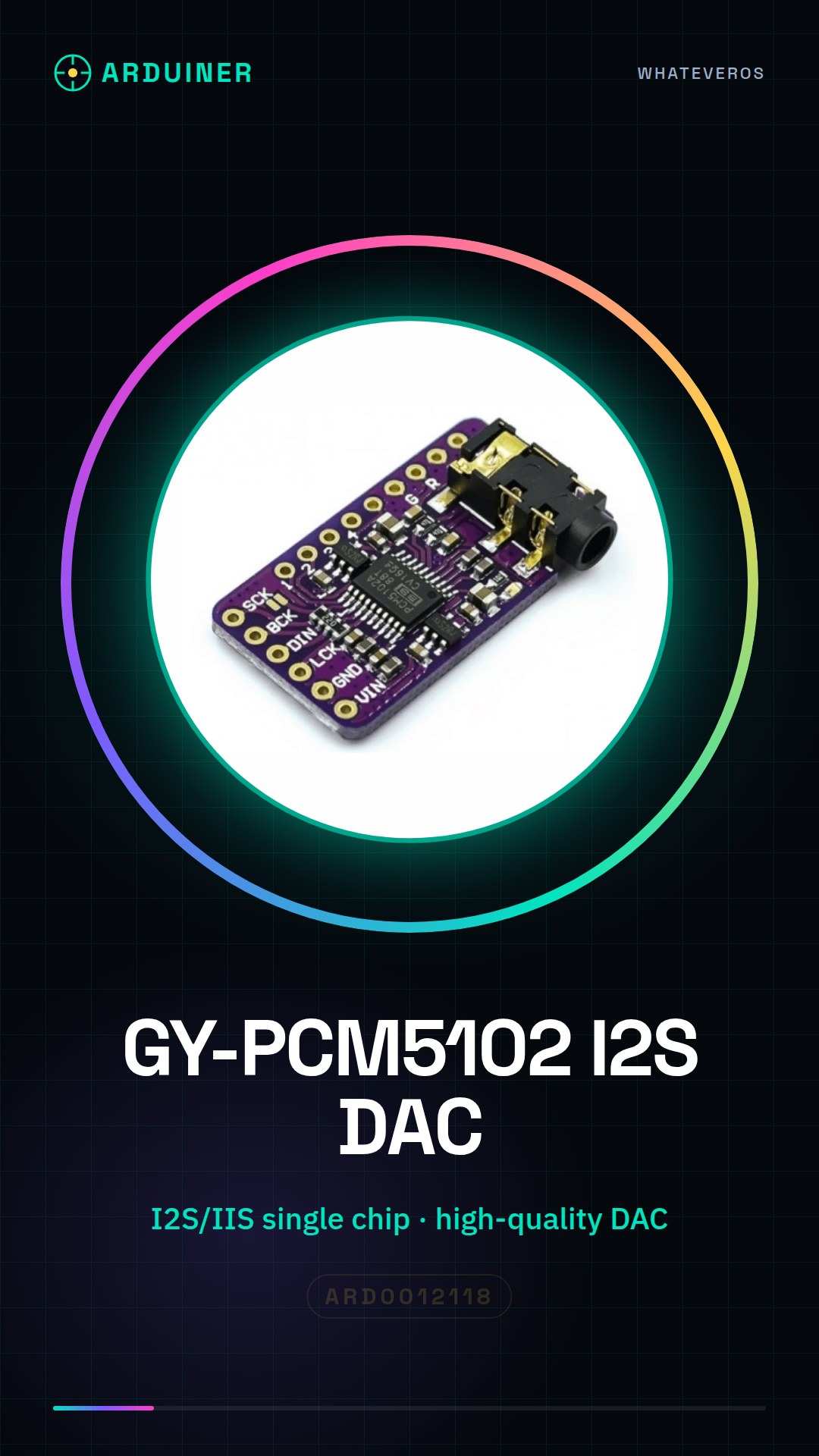
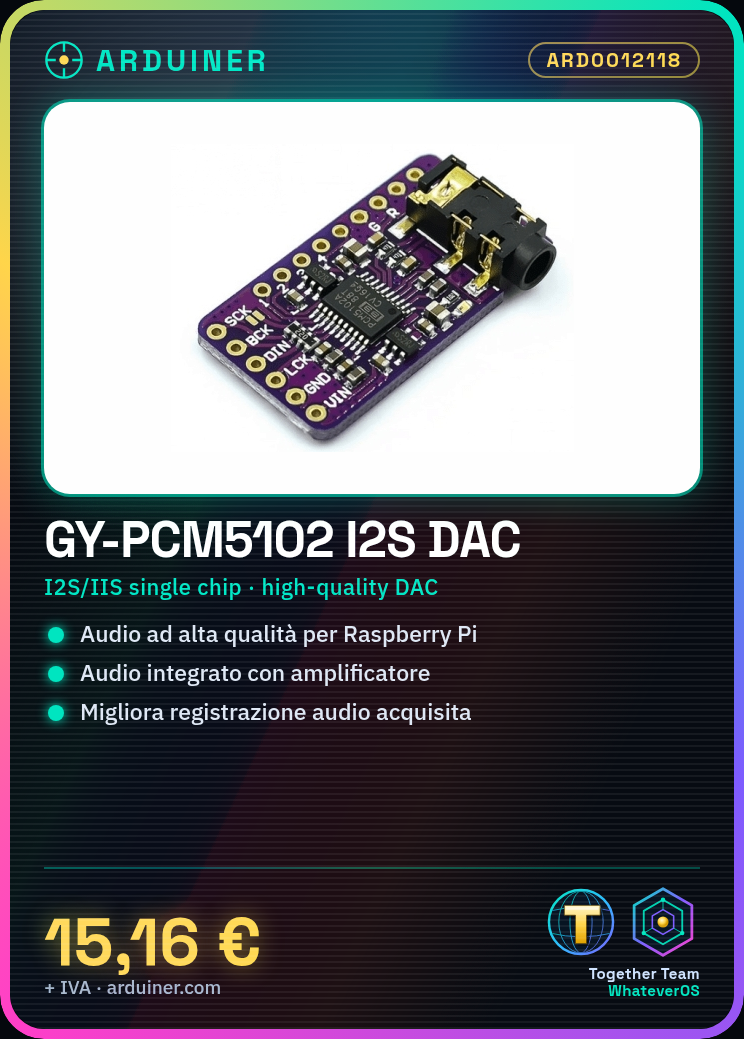
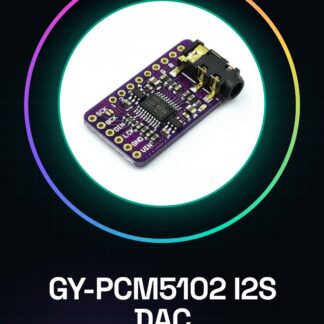
The GY-PCM5102 I2S DAC is an audio decoder module designed for use with Raspberry Pi. This device is a high-quality Digital to Analog Converter (DAC) that significantly improves the sound quality produced by your Raspberry Pi-based projects.
Features
- I2S/IIS single chip microcomputer high-quality digital audio DAC decoder board
- Compatible with Raspberry PI
What it is for
The GY-PCM5102 is ideal for projects requiring high-definition sound. You can use it to create small integrated audio systems in your Raspberry Pi, connected to an external small amplifier. Additionally, it can be useful for audio recording, improving signal acquisition.
Tutorial: How to use GY-PCM5102
The GY-PCM5102 is a high-quality DAC (Digital to Analog Converter) for audio, ideal for Raspberry Pi projects requiring high-definition sound. Suitable for both beginners and intermediates.
What you need
- Raspberry Pi
- I2S Cable
- SDA and SCL Cable
- 10kΩ Resistor
- MicroSD for Raspberry Pi
Steps
- 1. Install the latest version of Raspbian on a MicroSD.
- 2. Connect the Raspberry Pi to a monitor and keyboard.
- 3. Start the Raspberry Pi.
- 4. Install the I2S drivers using `sudo apt-get install i2c-tools`.
- 5. Connect the GY-PCM5102 to the Raspberry Pi: I2S Data In -> GPIO 18, I2S Clock -> GPIO 23, I2S Word Select -> GPIO 24, SDA -> GPIO 2, SCL -> GPIO 3.
- 6. Connect the 10kΩ resistor between VCC and GND of the GY-PCM5102.
- 7. Open a terminal and type `i2cdetect -y 1` to verify the presence of the GY-PCM5102.
- 8. Write a simple script to test the GY-PCM5102: `sudo nano /home/pi/test_dac.py` and insert the following Python code.
Example code
```python
import os
os.system('aplay -D plughw:1,0 test.wav')
```
Mini project
Create a small audio system for the Raspberry Pi using the GY-PCM5102 and a small amplifier. Connect a microphone to the Raspberry Pi and listen to the amplified sound.
Common mistakes
- Always check that the cables are properly connected.
- Ensure that the GY-PCM5102 is correctly powered.
- If it does not appear in `i2cdetect`, check the I2C configuration.
- Make sure the audio file (test.wav) is in the correct directory.
Recommended accessories
- Microphone for Raspberry Pi
- Audio Amplifier
- Audio cable to test the sound
Frequently asked questions
How can I verify if the GY-PCM5102 is correctly connected?
Check the presence of the device with `i2cdetect -y 1`.
Does the GY-PCM5102 support 24-bit audio?
Check the datasheet for confirmation.
Do I need an amplifier to test the GY-PCM5102?
No, you can test it with an audio cable to connect it to a speaker or an external audio system.
Reviews
There are no reviews yet.