 EN
 IT Italiano
 ES Español
 FR Français
 DE Deutsch
Description
What it is
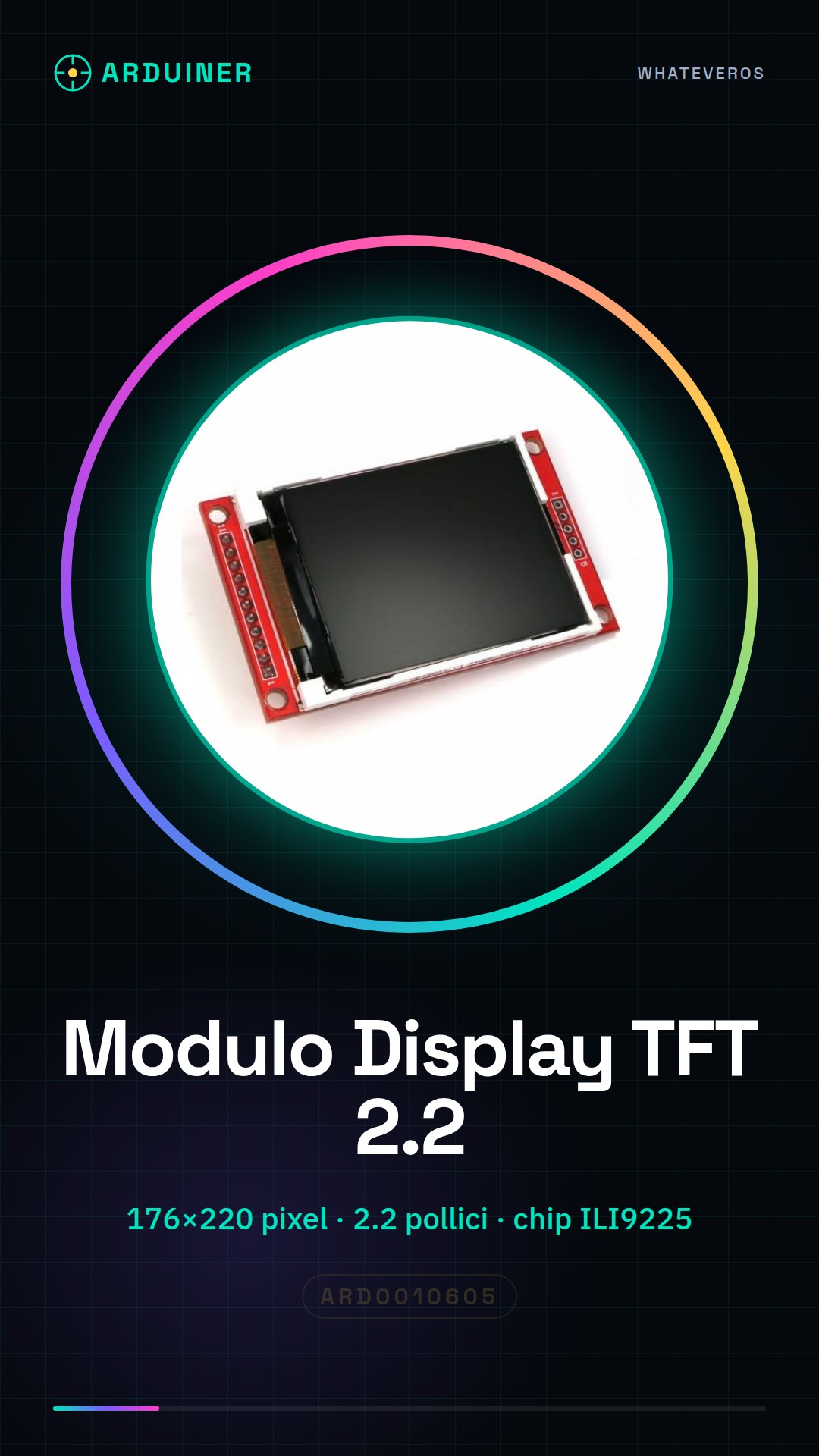
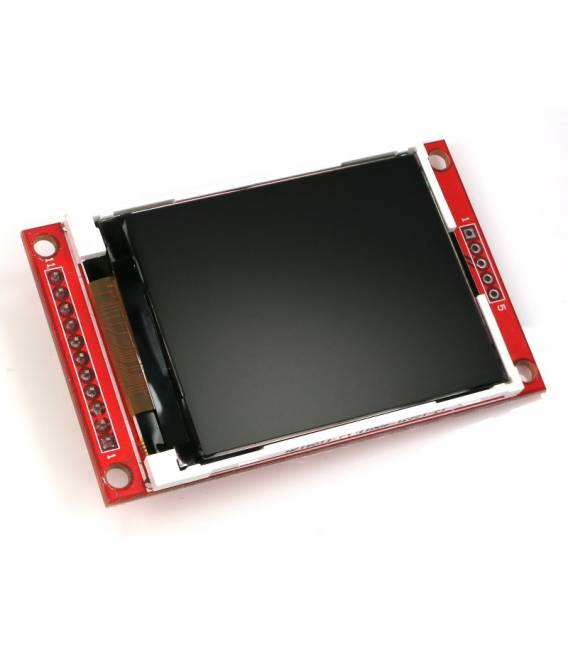
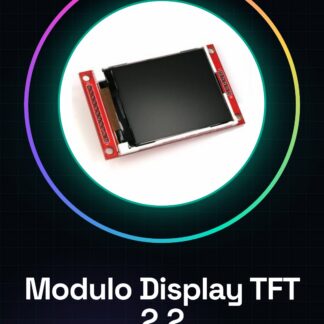
The 2.2 inch color TFT LCD display module with ILI9225 chip is an electronic component designed for graphical display in various electronic projects, such as those based on Arduino or Raspberry Pi.
Features
- Resolution: 176×220 pixels
- Display Type: Color TFT LCD
- Screen Width: 2.2 inches
- Integrated Chip: ILI9225
What it is for
TFT display modules are used to create graphical interfaces in electronic projects, such as interactive digital clocks. They are compatible with Arduino and Raspberry Pi, making them suitable for both beginners and expert developers.
Tutorial: How to Use 2.2 inch TFT LCD Display Module
The 2.2 inch color TFT LCD display module with 176×220 pixel resolution is perfect for interactive display projects, suitable for both beginners and expert developers.
What you need
- Arduino Uno or compatible
- USB Type B cable
- SPI connection between Arduino and display module
- Adafruit GFX Library
- Adafruit ILI9225 Library
Steps
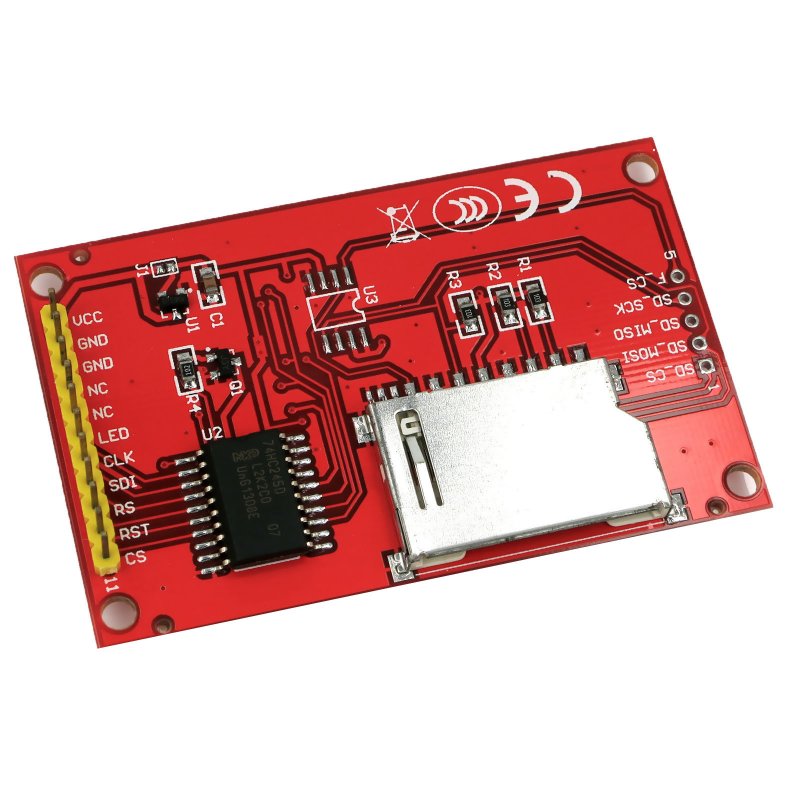
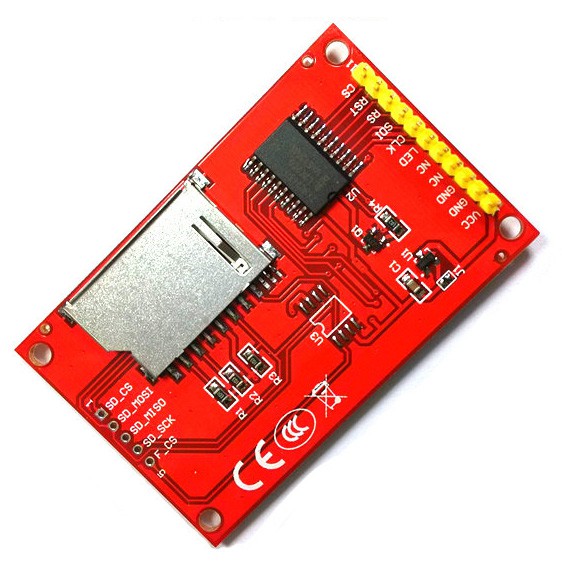
- Connect the display module pins to the Arduino microcontroller following the documentation.
- Install the necessary libraries through the Arduino IDE library manager.
- Upload the example sketch provided with the libraries to test the display functionality.
- Check that the SPI pins are correctly configured in the code.
- Modify the sketch according to your needs, for example by adding an animation or a welcome screen.
- Test the complete project to ensure everything works as expected.
- Optimize the code and reduce memory usage if necessary.
- Share your project with other makers online.
Example code
// Includi le librerie
#include <Adafruit_GFX.h>
#include <Adafruit_ILI9225.h>
// Definisci i pin SPI
#define TFT_DC 9
#define TFT_CS 10
#define TFT_MOSI 11
#define TFT_SCLK 13
// Inizializza il display
Adafruit_ILI9225 tft = Adafruit_ILI9225(TFT_CS, TFT_DC);
void setup() {
  tft.begin();
}
void loop() {}
Mini project
Create an interactive digital clock with the display module: display the current time and add a function to change the mode (24h/12h).
Common mistakes
- Ensure that the SPI pins are correctly configured in the code.
- Check that the libraries are installed correctly.
- Check the display module power supply to avoid malfunction.
- Resolve any conflicts between the pins used by the display and those of the Arduino.
Recommended accessories
- USB Type B cable
- Pull-up resistor
- External power supply connection
- Bluetooth antenna
Frequently asked questions
Which libraries are needed?
Adafruit_GFX and Adafruit_ILI9225.
How do I solve the black screen display problem?
Check the SPI pin configuration and the module power supply.
Reviews
There are no reviews yet.