 EN
EN IT Italiano
 ES Español
 FR Français
 DE Deutsch
Description
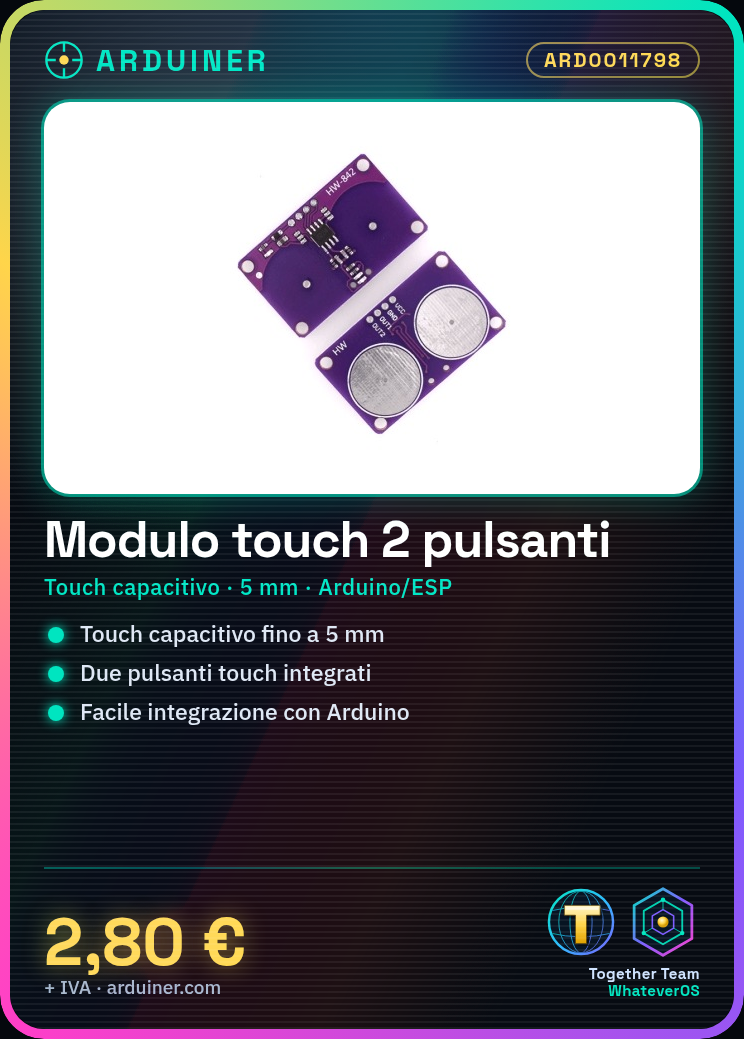
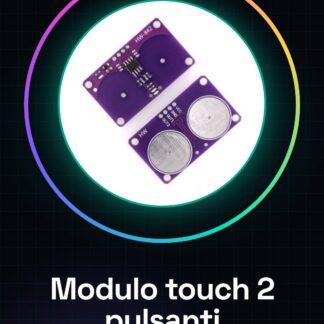
What is it? The 2-button touch module is an electronic component that uses capacitive technology to detect touch without physical contact. This proximity sensor can be integrated into various devices and DIY projects, offering a simple and elegant solution for user interaction. Features: Capacitive touch technology, 2-button touch sensitive up to 5mm distance, ideal for Arduino and ESP projects. What is it used for? It allows builders to create intuitive user interfaces in various devices, such as small digital watches or any device that requires touch-sensitive interaction. The module is compatible with Arduino and ESP, making its integration simple for beginners. Tutorial: How to Use 2-Button Touch Module This capacitive touch module allows you to create touch-sensitive interfaces for electronic projects. Ideal for beginners who want to add an intuitive user interface to their devices. What is needed? Arduino Uno or compatible USB Type B cable Power connection Connect the VCC and GND pins of the module to the +5V and GND of the Arduino. Connect the DO (Data Out) pin of the module to digital pin 2 of the Arduino. Install the capacitiveSensor library following the instructions on the official Arduino website. Insert the provided example sketch and modify it to fit your pins. Upload the code to the Arduino via the USB cable. Start the Serial Monitor application in Arduino IDE to view sensor information. Example code includes capacitiveSensor cs1 = capacitiveSensor(2); void setup() { Serial.begin(9600); } void loop(){ long int sensor1 = cs1.capacitiveSensor(30); Serial.println(sensor1); } Mini-project Create a small digital clock that changes hours and minutes when you touch the module’s touch buttons. Common errors: Not checking pin connections, using suboptimal environmental conditions (humidity, light), ignoring capacitiveSensor library instructions, not testing the module before integrating it into the project. Recommended accessories: Arduino Uno R3, capacitiveSensor library, 3D printer for a custom case, USB Type B cable. Frequently asked questions: If the module does not respond, check the electronic connections, power supply, and installed library. What is the touch range? Check the datasheet for specific details.
Reviews
There are no reviews yet.